Screening questions are set up in the Hiring Process section when creating a Job.
-
When creating Pre-Screening Questions from a Job Template
-
When creating Pre-Screening Questions from the New Job Creation screen
-
Editing Pre-Screening Questions
-
Reviewing Screening Question Responses
-
Editing Screening Question Responses
<When creating Pre-Screening Questions from a Job Template>
If you want to create and use a new Screening Question, go to Settings > Job Templates > Pre-Screening Questions tab > click New Pre-Screening Question.
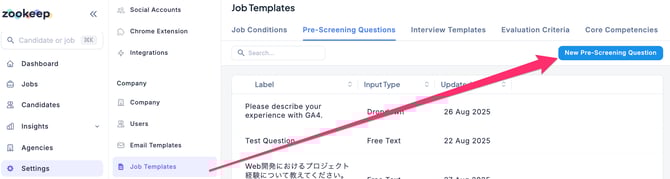
In Label, enter the question you want the candidate to answer.
For Type, you can choose either Free Text Input or Dropdown.
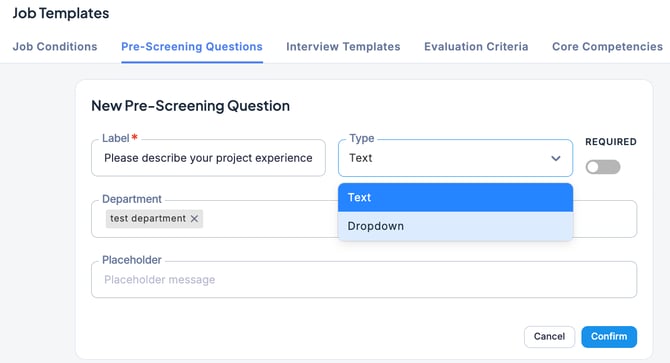
If you set the Type to Dropdown, you will need to configure answer choices as shown below.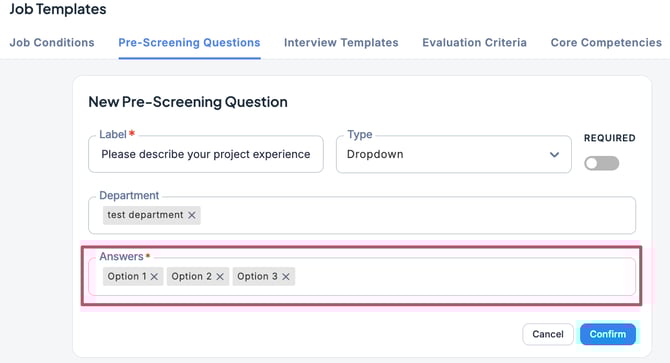
<When creating Pre-Screening Questions from the New Job Creation screen>
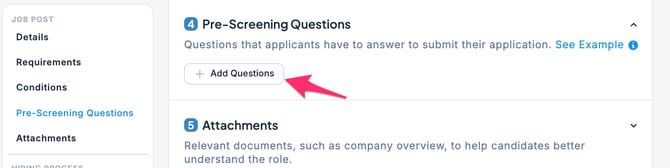
Open the new Job creation screen, go to the Pre-Screening Questions section, and click + Add Question.
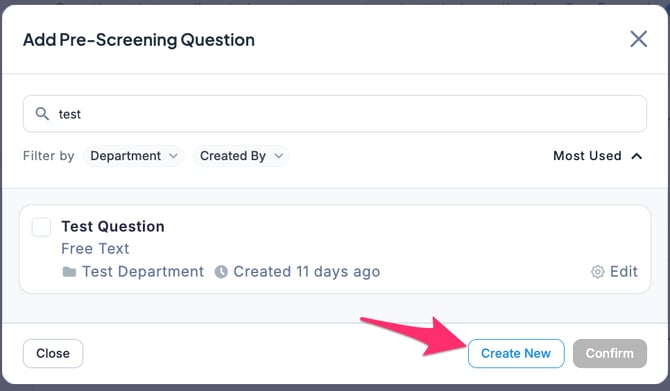
If you want to create a new screening question, click Create New.
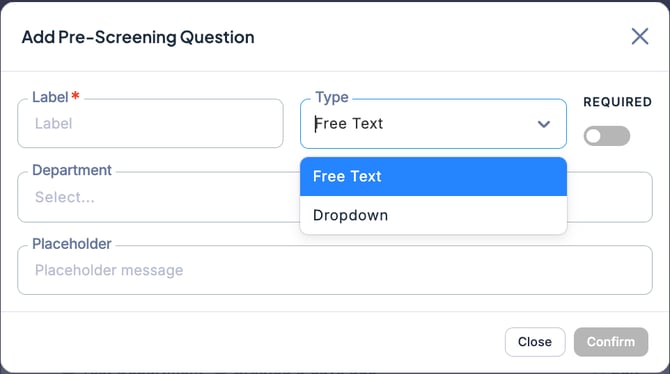
As with creating a new pre-screening question from a Job Template, enter the question you want the candidate to answer in Label.
For Type, you can choose either Free Text Input or Dropdown.
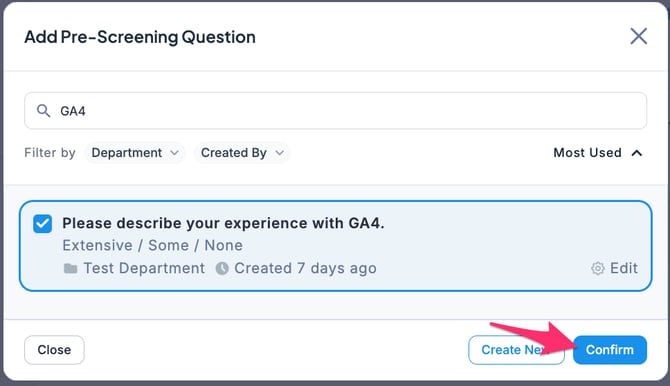
If you want to use an already created Pre-Screening Question, check the box next to the desired question and click Confirm.
💡 You can register as many screening questions as needed, but having too many may burden applicants. We recommend setting around 3 to 7 questions.
<Editing Pre-Screening Questions>
-
-
If you want to change the screening questions set for a Job, do so in the Job’s edit screen.
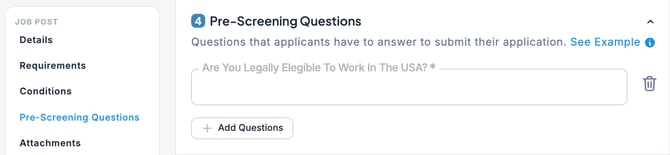
-
You can also edit them by going to Job Templates > Pre- Screening Questions.
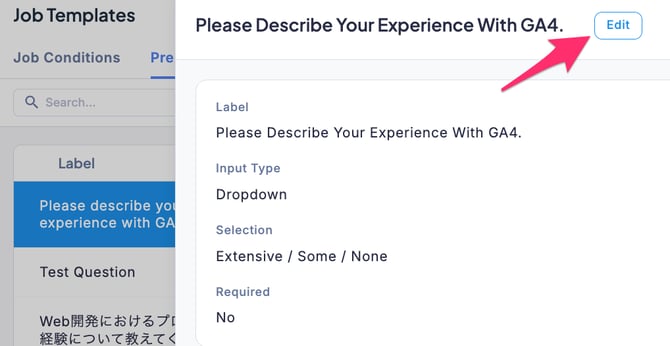
-
💡For details on editing Job Templates, please refer to this section.
<Reviewing Screening Question Responses>
When a candidate applies directly through the Career Site or a private Job posting, their responses to screening questions are automatically recorded. You can view these responses in the Job’s Applications tab by selecting the candidate and checking the Screening section under the Entry Stage.
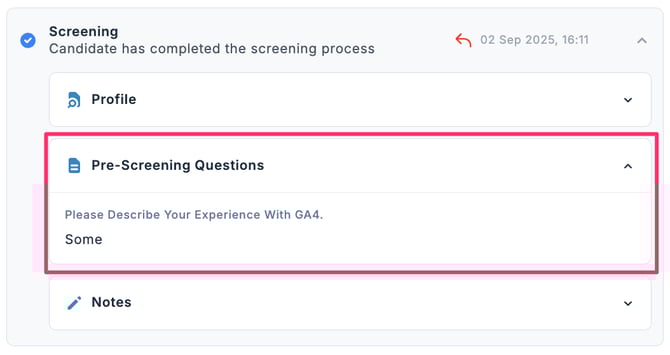
<Editing Screening Question Responses>
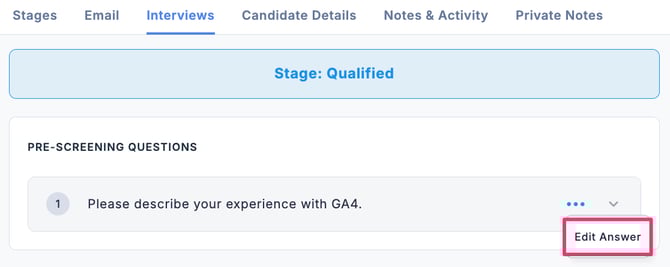
If you want to edit a candidate’s screening responses, go to the Job’s Applications tab, select the candidate, then in the Screening Questions section under the Interviews Stage, click the … menu and choose Edit Answer.