In ZooKeep, you can register templates for individual components of a Job posting, such as Job Conditions, Pre-Screening Questions, and Evaluation Criteria.
This section explains how to register each component from the Settings screen.
- Click Settings (gear icon) on the left side of the screen to access the Settings.
- From the left-side menu, click Job Templates.
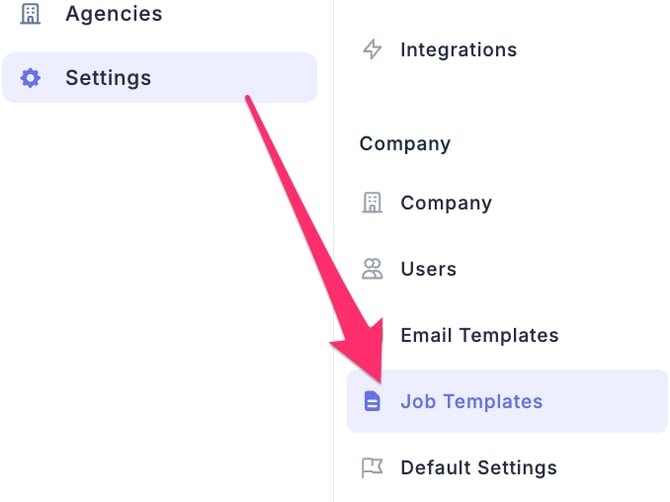
- When the Job Templates screen appears, register templates for each item as needed.
-
Register Job Conditions as a Template
-
Register Pre-Screening Questions as Templates
-
Register Interviews as Templates
-
Register Evaluation Criteria as Templates
-
Registering Core Competencies as Templates
Register Job Conditions as a Template
- In the Job Templates screen, click the Job Conditions tab, then click the New Job Condition button in the upper-right corner.

- When the New Job Condition screen appears, enter the required information. Once finished, click the Confirm button to save the template.
※ If you check Required, this field will become mandatory when creating a Job.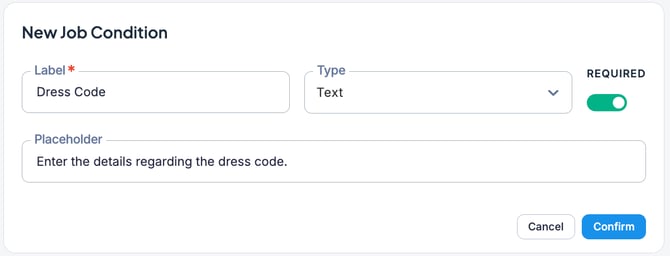
💡 You can set the input type to either Free Text Entry or Dropdown Selection.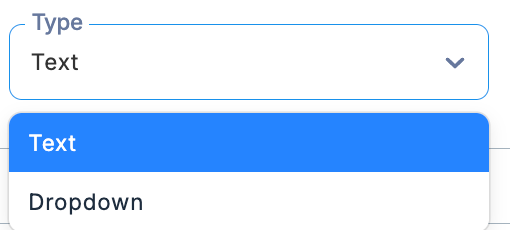
Register Pre-Screening Questions as Templates
- In the Job Templates screen, click the Screening Questions tab, then click the New Pre-Screening Question button in the upper-right corner.

- When the New Pre-Screening Question screen appears, enter the required information. Once finished, click the Confirm button to save the template.
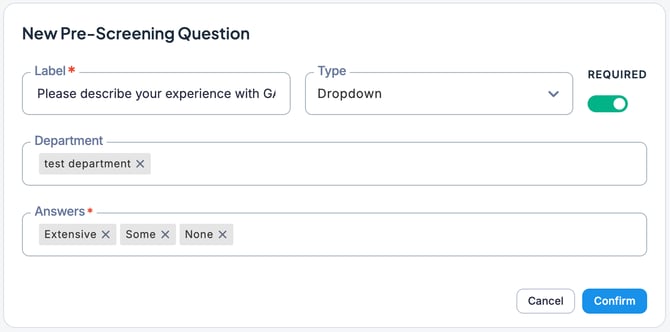
💡 Pre-Screening Questions and interview templates can be organized by department for more efficient management.
Register Interviews as Templates
- In the Job Templates screen, click the Interview Templates tab, then click the New Interview Template button in the upper-right corner.

- When the New Interview Template screen appears, enter the required information. Once finished, click the Confirm button to save the template.
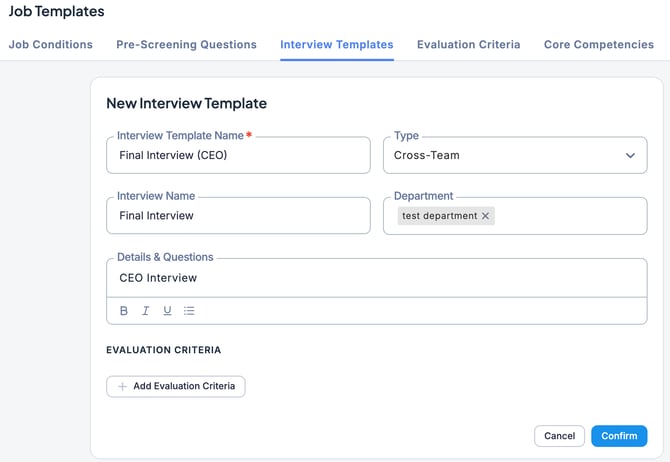
💡Click Add Evaluation Criteria to open the Create Evaluation Criteria window, where you can register new criteria to be used for that interview.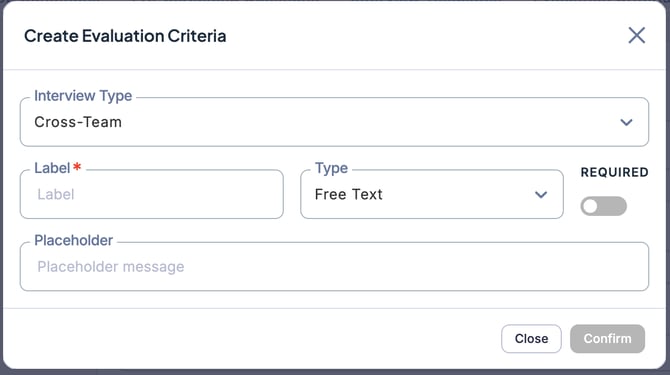
Register Evaluation Criteria as Templates
- In the Job Templates screen, click the Evaluation Criteria tab, then click the New Evaluation Criteria button in the upper-right corner.

- When the New Evaluation Criteria screen appears, enter the required information. Once finished, click the Confirm button to save the template.
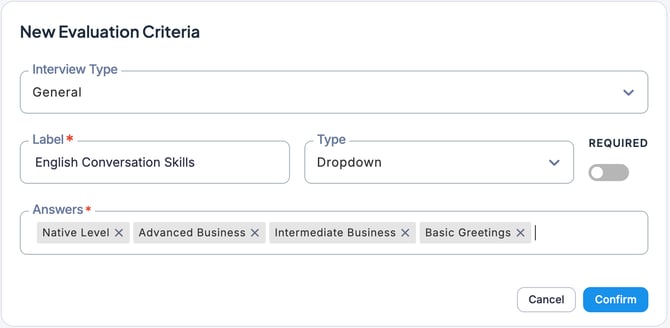
Registering Core Competencies as Templates
- In the Job Templates screen, click the Core Competencies tab, then click the New Core Competency button in the upper-right corner.

- When the New Core Competency screen appears, enter the required information. Once finished, click the Confirm button to save it.
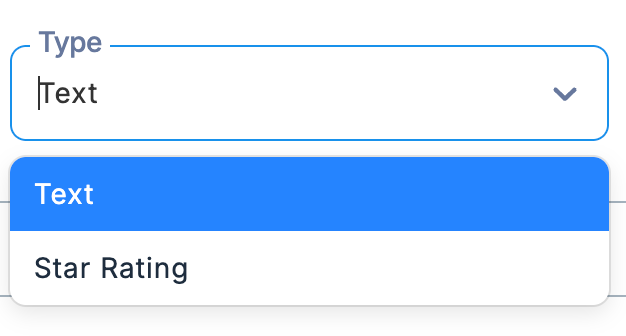
The input type for core competencies can be set to either Free Text Entry or a 5-Star Rating.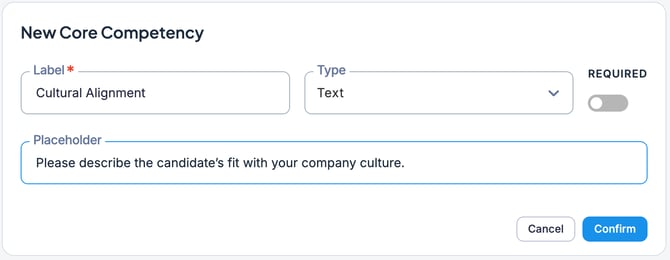
💡 Core Competencies are the essential behaviors and skills required for a position.
When Core Competencies are set within a Job, they are displayed on the evaluation
cards for all interviews, and interviewers must provide an assessment of them.
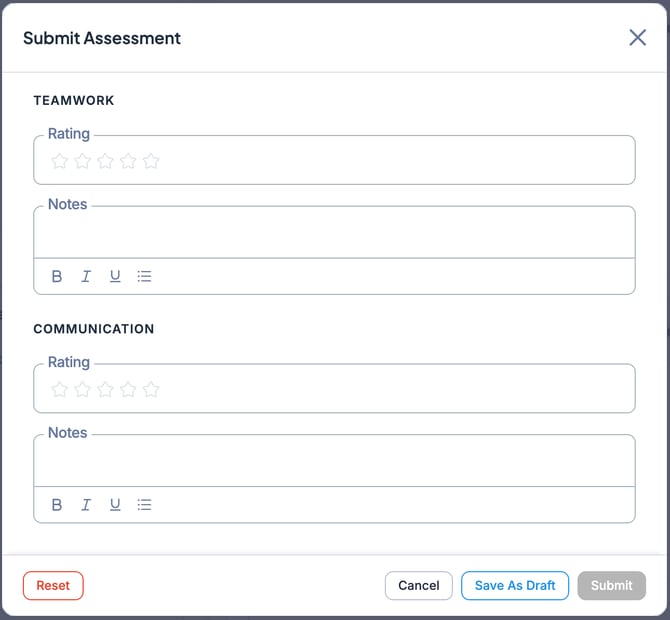
Example: If Teamwork and Communication are set as core competencies, these items will appear on every interviewer’s evaluation card.