
From the job list, you can select multiple jobs and publish or unpublish them on your career site in bulk.
Publish Jobs in Bulk
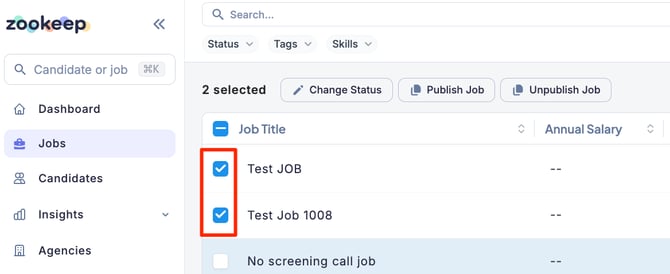
- From the Jobs section, click the checkboxes for the jobs you want to publish on the career site.
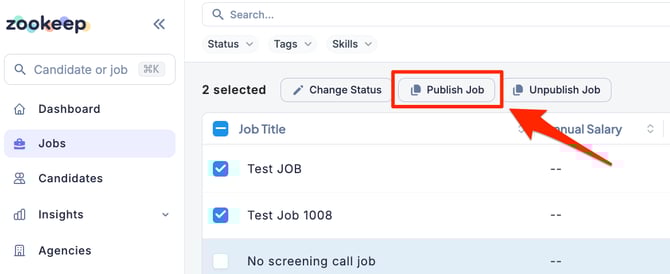
- Click “Publish Jobs” at the top of the screen.
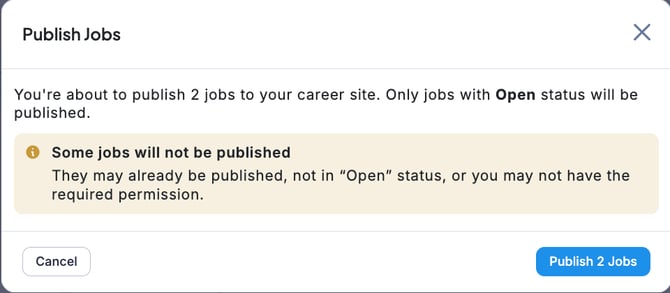
- Review how many jobs will be published, then click “Publish Jobs” to confirm.

💡 Only jobs with the Open status can be published, and you must have editing permissions for the selected jobs.
Unpublish Jobs in Bulk
- From the Jobs section, click the checkboxes for the jobs you want to unpublish from the career site.
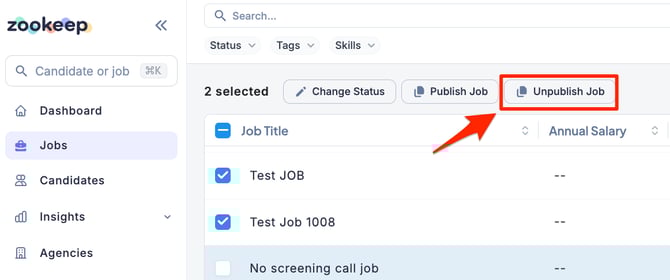
- Click “Unpublish Jobs” at the top of the screen.
- Review how many jobs will be unpublished, then click “Unpublish Jobs” to confirm.
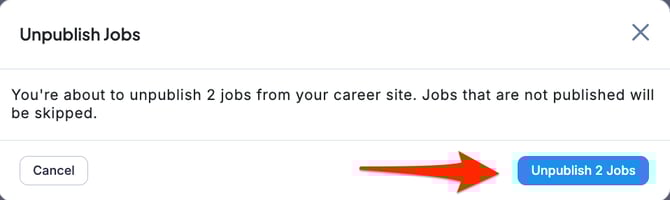
Jobs that are already unpublished or jobs for which you do not have editing permissions will be automatically skipped.
