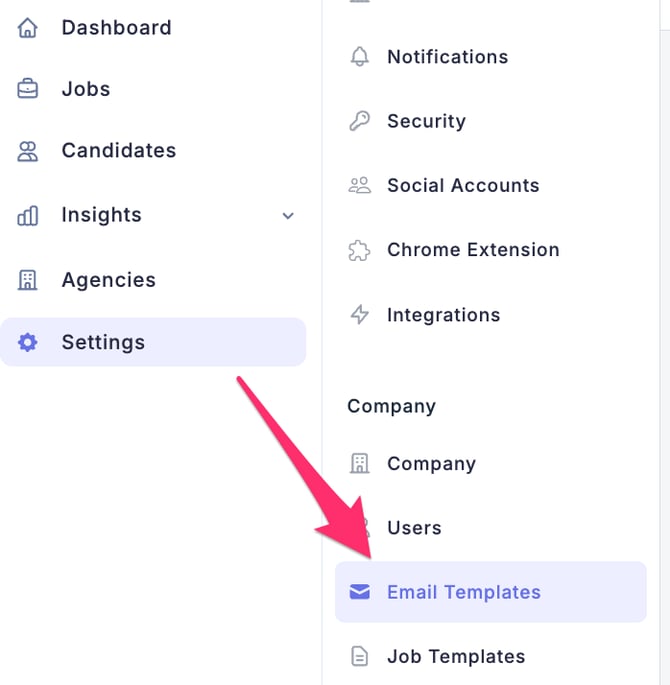
- Click Settings (gear icon) on the left side of the screen to access the Settings.
- From the left-side menu, click Email Templates.
- Click the New Template button in the upper-right corner of the screen.
- When the New Email Template screen appears, enter the required information.
Once the template is created, click the Confirm button to save it.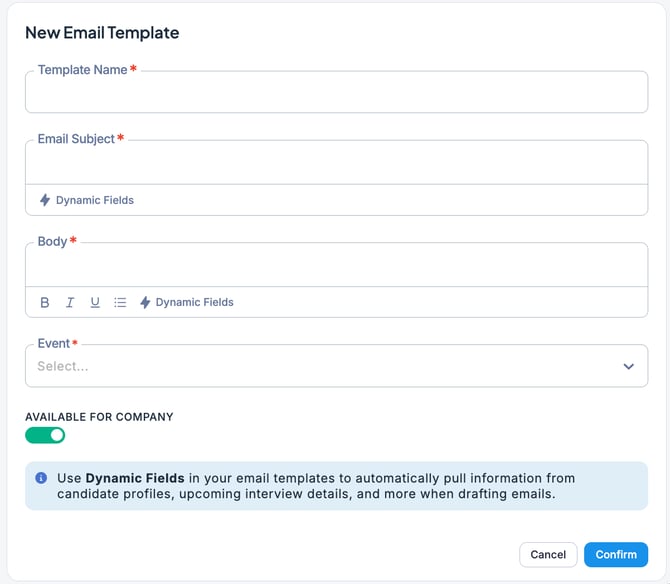
Click Dynamic Fields to insert fields that automatically populate specific information. In Select Dynamic Field, choose the items you want to include.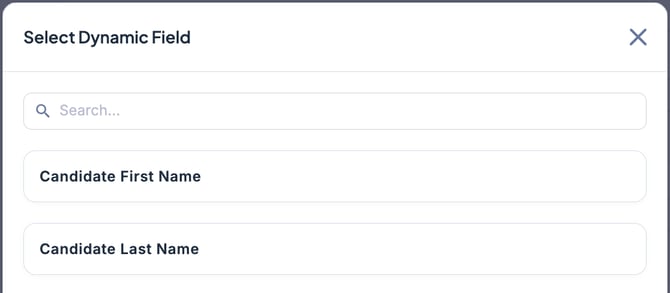
You can insert merge fields into the email subject or body as shown below. This allows the content to be automatically replaced based on the Job or recipient when the template is applied.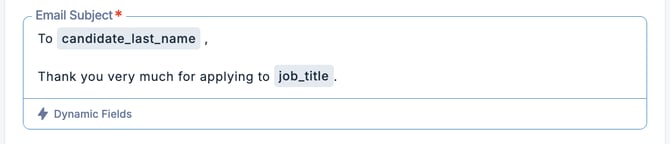
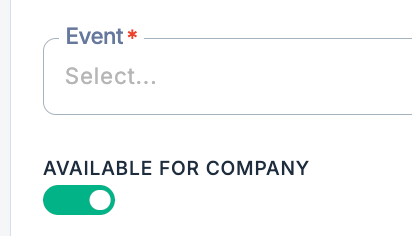
💡 You must assign an event type to the template. Select the appropriate option from the Event dropdown menu.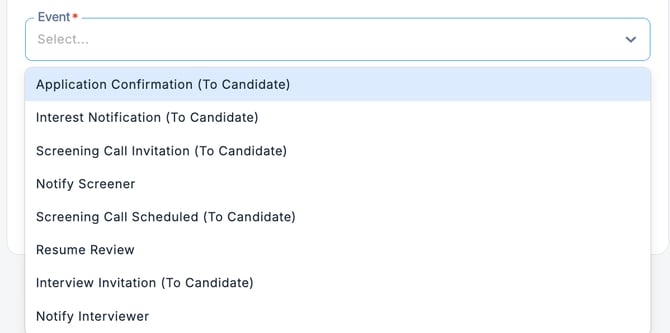
If you check AVAILABLE FOR COMPANY, the template will be available to other users. Leave it unchecked if you want to keep it as a private template only you can access.